

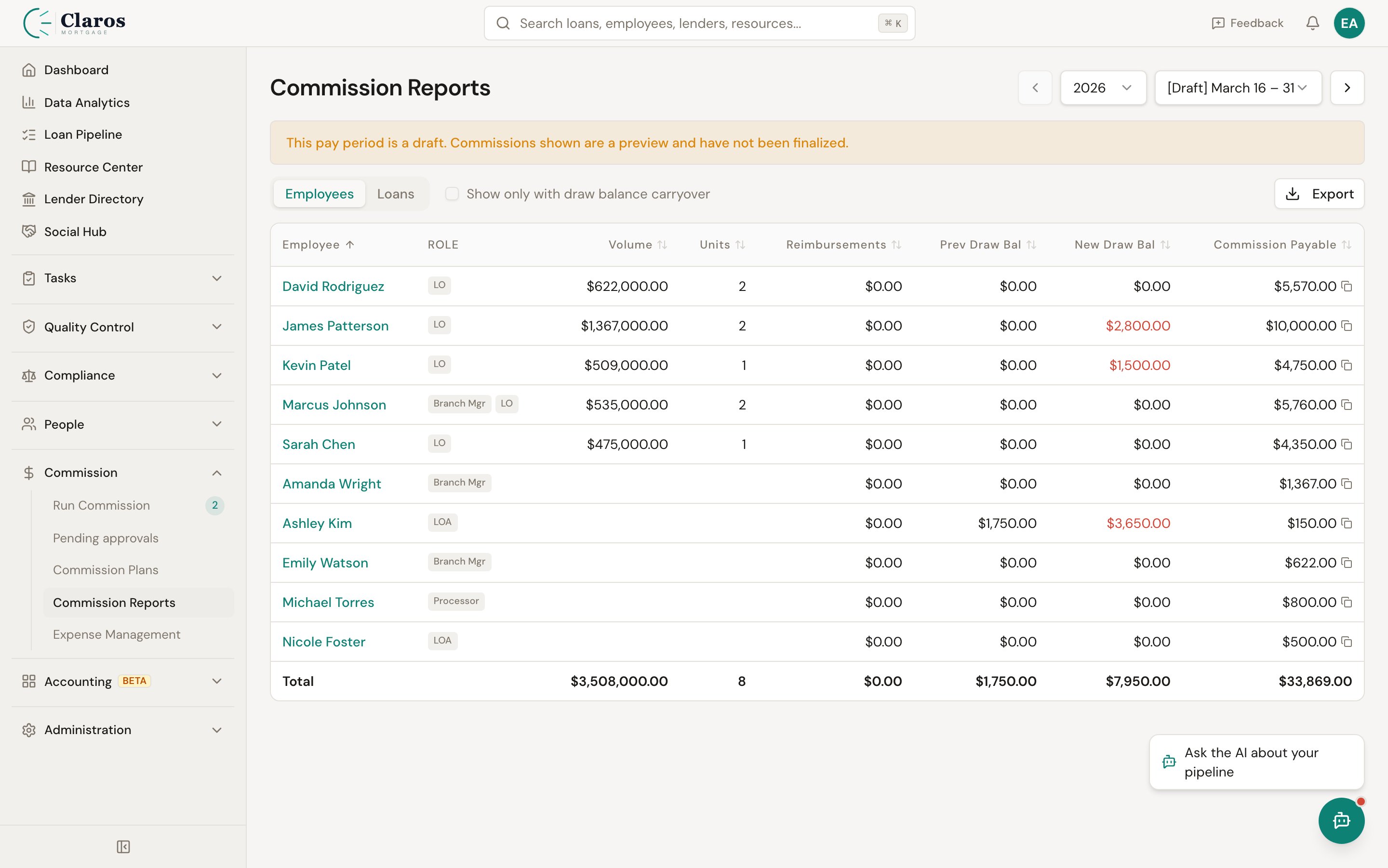
Report Overview
When a pay period is selected, the report displays two main sections:Employee Summary Table
The top section shows a summary row for each employee who earned commissions in the selected pay period:
Click on an employee’s name to navigate to their individual report detail page.
Loan Breakdown Table
Below the employee summary, the report shows a per-loan breakdown:Per-Employee Report Detail
Clicking on an employee name in the summary table opens their individual report for the selected pay period.Navigating to the Employee Report
- From the Reports page, click on an employee’s name in the summary table.
- The employee report detail page opens, showing the same pay period selector so you can switch periods.
What the Employee Report Shows
The employee report detail includes:Commission Line Items
Each line item represents a commission earned on a specific loan, grouped by the employee’s role:Adjustment Detail
For loan officer commission items, each loan’s adjustments that apply to commissions are listed individually:- Adjustment description (or name)
- Adjustment amount
Totals by Role
If the employee earns commissions in multiple roles (e.g., as a Loan Officer on their own loans and as a Branch Manager on branch loans), the report breaks down totals by role.Summary Section
The bottom of the report shows overall totals:Expenses
If the employee has expenses in this period, they are listed:- Date
- Amount
- Notes
Exporting Reports
From the Reports Page
On the Reports page, an Export CSV button is available in the header when a pay period is selected. This exports the same data available through the Run Commissions CSV exports:- Detail export: One row per commission result across all employees and loans
- Summary export: One row per employee with aggregated totals
From the Pay Period Detail
On the Run Commissions pay period detail page (Step 3: Finalize), you can also export:- Export Detail — Full line-by-line commission data
- Export Summary — Per-employee summary
Draft vs. Finalized Reports
Reports are available for both draft and finalized pay periods:Note: Draw balance data is locked at finalization. Commission line items are recalculated from the current rule set when viewed. If rules are changed and the period is unfinalized and re-finalized, results may differ.
Historical Pay Periods
All pay periods are retained and accessible through the pay period selector dropdown. This provides a full history of commission calculations over time. To review a historical period:- Open the Reports page.
- Use the pay period selector to choose an older period.
- The report loads with the selected period’s data.
Common Report Scenarios
Reviewing an Employee’s Monthly Earnings
- Go to Reports.
- Select the pay period for the month in question.
- Click on the employee’s name to see their detailed breakdown.
- Review each loan’s commission, file fees, adjustments, and the final net pay.
Comparing Periods
- Open Reports and note the employee summaries for one period.
- Switch the pay period selector to a different period.
- Compare loan counts, volumes, and net pay between periods.
Investigating a Commission Discrepancy
- Go to the employee’s report detail for the period in question.
- Review each commission line item — check the role, gross commission, file fee, and adjustments.
- Note the loan details (type, lender, lead source) to understand which rule was applied.
- Cross-reference with the commission template’s rules to verify the correct rule matched.
- If the wrong rule was applied, check the template’s rule filters and precedence order (see Commission Rules).
Preparing Payroll
- Open Reports for the finalized pay period.
- Review all employee summaries and net pay amounts.
- Click Export CSV to download the summary export.
- Import the CSV into your payroll system or use the data to prepare paychecks.