

What the lender directory is
In mortgage brokerage and correspondent lending, you work with many different wholesale lenders — each with their own programs, underwriting guidelines, contacts, and portal systems. The Keystone lender directory keeps all of this information in one place so that your team can quickly reference it and so that the platform can associate loans with the correct lender for commission calculations and reporting.Viewing lenders
Go to Directories > Lenders in the sidebar. Each lender shows:- Name and optional display name
- NMLS number
- Rating (if one has been set)
- Product types they support
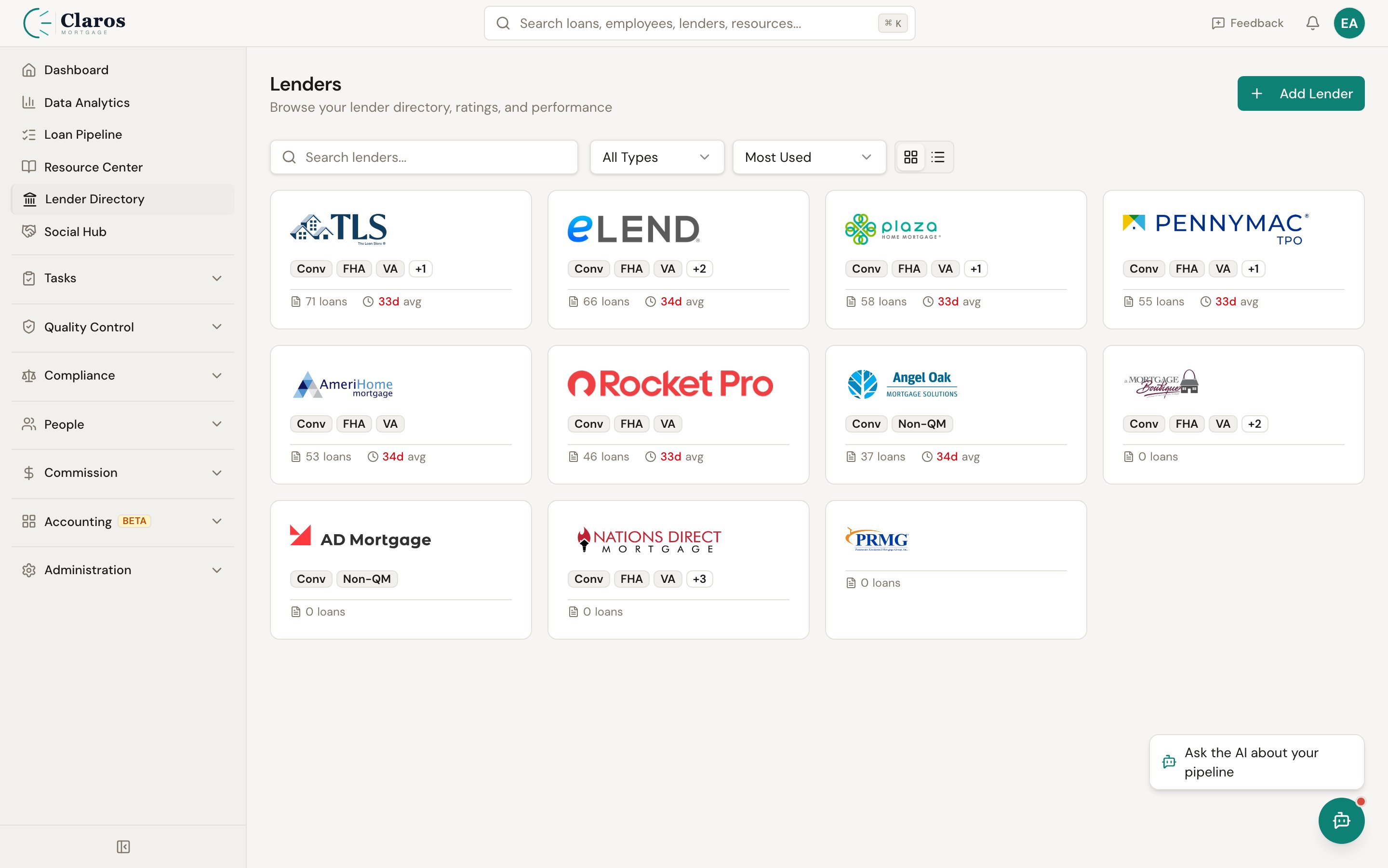
Adding a new lender
- Navigate to Directories > Lenders.
- Click Add Lender.
- Complete the form sections described below.
- Click Create Lender.
Lender Information
Program IDs
These are the identification numbers your company uses when submitting loans to this lender. They vary by loan program.Product Types
Select all loan product types that this lender offers. This helps your team know which lenders to consider for a given loan scenario.
Product types are selected via checkboxes. You can select as many as apply.
Insurance Clauses
Lenders require specific language for insurance policies. Store these clauses here so your team can easily reference them when ordering insurance.Managing lender contacts
Each lender can have multiple contacts — account executives, underwriters, closers, and other representatives. Contacts are managed from the lender detail/edit page.Contact fields
To add a contact
- Navigate to the lender’s detail or edit page.
- In the Contacts card, click Add Contact.
- Fill in the contact fields.
- Click Add Contact to save.
To edit a contact
- On the lender page, find the contact in the list.
- Click the pencil (edit) icon.
- Update the fields.
- Click Save.
To delete a contact
- Click the trash icon next to the contact.
- The contact is removed immediately.
Editing a lender
Go to Directories > Lenders, click the lender you want to edit, update any fields, and click Save Changes.How lenders relate to other data
Loans
Every loan in Keystone is associated with a lender. The lender determines which program IDs and insurance clauses apply, and it appears in loan-level reporting and analytics.Commission rules
Commission templates can include rules that are scoped to specific lenders. For example, you might have a higher or lower commission split for loans submitted to a particular wholesale lender.Analytics
The analytics dashboard includes lender-level breakdowns, allowing you to see volume, units, and revenue by lender over time.Related pages
- Employees — employees originate loans with lenders
- Lead Sources — lead sources and lenders are both used in commission rule scoping
- Company Settings — company-level LOS configuration affects how loan data flows from lenders