Documentation Index
Fetch the complete documentation index at: https://docs.keystn.com/llms.txt
Use this file to discover all available pages before exploring further.
The employee directory
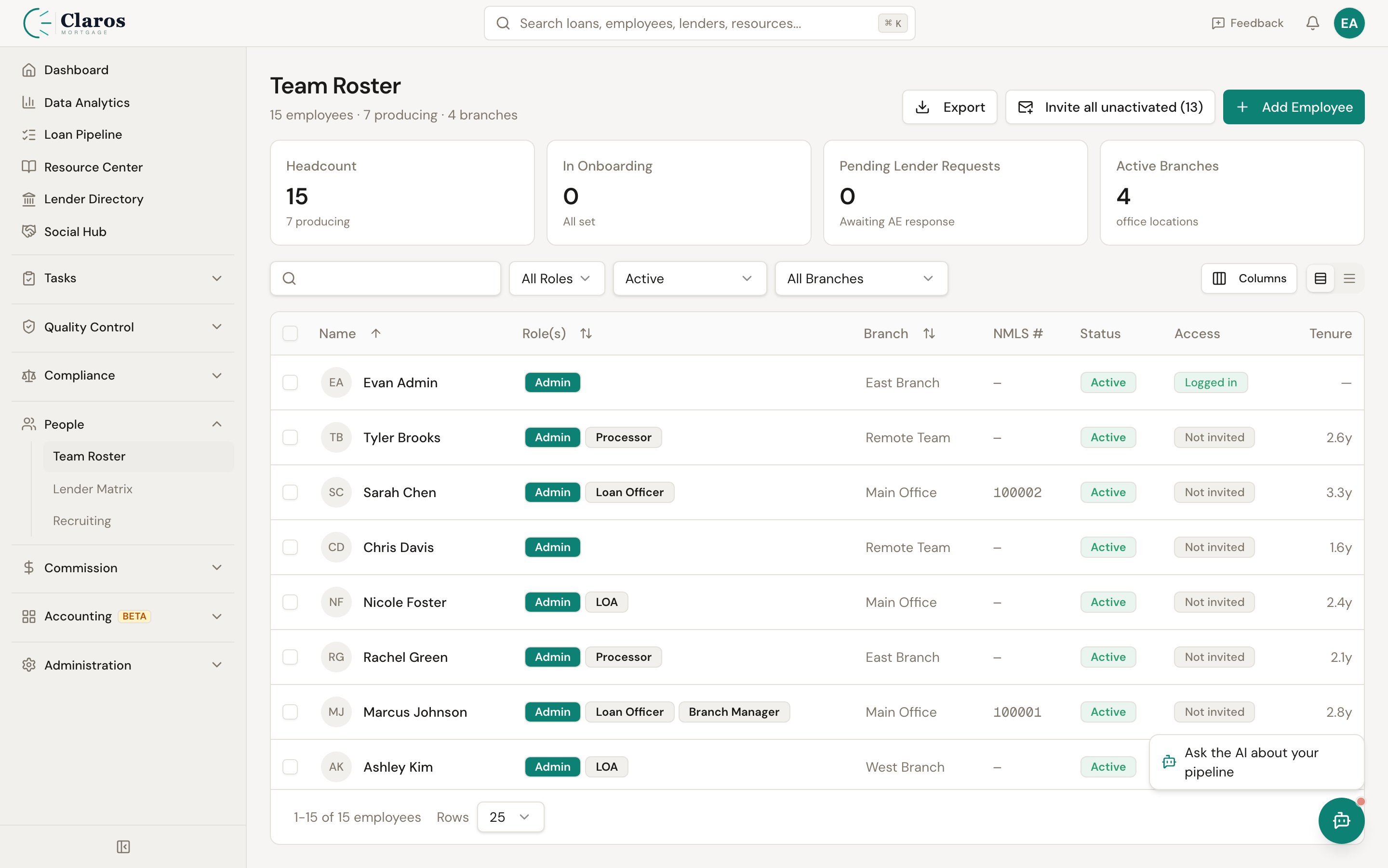
Go to Directories > People in the sidebar to view the employee directory.
The directory displays a searchable, filterable table with the following columns:
| Column | Description |
|---|
| Name | Full name (first + last), with custom title shown beneath if set |
| Role(s) | One or more role badges (e.g., “Loan Officer,” “Processor”) |
| Branch | The branch the employee is assigned to, or ”-” if unassigned |
| Email | Email address |
| Phone | Mobile number |
| Status | Active or Inactive (archived) badge |
Clicking an employee’s name takes you to their detail view.
Filtering employees
The filter bar above the table provides four controls:
- Search — Free-text search across employee names
- Role — Filter by a specific role (Loan Officer, LOA, Processor, Contractor, Branch Manager) or show all
- Status — Show Active employees, Inactive (archived) employees, or all
- Branch — Filter by a specific branch (only appears if branches exist)
Adding a new employee
- Navigate to Directories > People.
- Click the Add Employee button.
- Complete the form (described below).
- Click Create Employee.
The employee form is organized into three sections.
| Field | Required | Description |
|---|
| First Name | Yes | Employee’s legal first name |
| Last Name | Yes | Employee’s legal last name |
| Title | No | Custom title for display (e.g., “Senior Loan Officer”). Max 100 characters. |
| Email | No | Email address. Used for notifications and system access if an auth account is linked. |
| Mobile Number | No | Mobile phone number |
| NMLS ID | No | The employee’s individual NMLS number (distinct from the company NMLS) |
Employment
| Field | Required | Description |
|---|
| Branch | No | The branch this employee belongs to. Select from a dropdown of existing branches. |
| Tax Classification | No | W-2 or 1099. Determines how the employee is treated for payroll and tax purposes. |
| Start Date | No | The date the employee started with the company |
| Termination Date | No | The date the employee’s employment ended. Setting this effectively marks the employee as former staff. |
| Roles | Yes (at least one) | Check all roles that apply. An employee can hold multiple roles simultaneously. |
Available roles
| Role | Typical responsibilities |
|---|
| Loan Officer | Originates loans, works directly with borrowers. The primary role for production tracking and commission calculations. |
| Loan Officer Assistant (LOA) | Supports a loan officer with file preparation and borrower communication |
| Processor | Manages the loan file through underwriting and closing |
| Contractor | External contractor, typically paid on a 1099 basis |
| Branch Manager | Oversees a branch and its staff. Branch managers can be assigned as the manager for one or more branches. |
Draw and Payroll
Draw settings determine whether and how much an employee receives as a guaranteed minimum payment (draw) during each pay period, before commission calculations.
| Field | Required | Description |
|---|
| Draw Type | No (defaults to “No Draw”) | The method used to calculate the employee’s draw |
| Draw Amount | Conditional | Only shown when Draw Type is Flat Amount. The fixed dollar amount per period. |
| Hourly Rate | Conditional | Only shown when Draw Type is Hourly. The per-hour pay rate. |
| Hours Per Period | Conditional | Only shown when Draw Type is Hourly. Number of hours expected per pay period. |
Draw calculation types
| Type | How it works |
|---|
| No Draw | Employee receives no guaranteed draw. They are paid purely on commission. |
| Flat Amount | Employee receives a fixed dollar amount as a draw each pay period (e.g., $2,000/period). |
| Hourly | Employee’s draw is calculated as hourlyRate x hoursPerPeriod (e.g., $25/hr x 80 hrs = $2,000). |
Company-wide draw defaults are configured in Company Settings. Individual employee settings override the company defaults.
Additional employee fields
The following fields are available on the employee detail page:
| Field | Description |
|---|
| Draw Balance | The current running balance of draws paid vs. commissions earned. Managed automatically by the commission system. |
| Draw Carry-Over Disabled | When checked, the employee’s draw balance resets to zero each period instead of carrying over. |
| Profile Image | A URL to the employee’s profile photo |
| Analytics-Only | When enabled, the employee appears in analytics and reports but is excluded from commission processing |
| Setup Complete | Flag indicating whether the employee’s profile has been fully configured |
| Archived | Marks the employee as inactive. Archived employees are hidden from most views by default but their historical data is preserved. |
| Hidden | Hides the employee from the directory without archiving them |
| Hide From Directory | Similar to Hidden; prevents the employee from appearing in the public-facing directory |
| Preferred Name | A nickname or preferred name |
| Introduction | A brief bio or introduction text |
| Birthday | The employee’s date of birth |
| Town | The employee’s home city or town |
| Payroll Provider ID | An external ID linking to a third-party payroll system |
State licensing
Loan officers and other NMLS-licensed employees need state-level licenses to originate loans. Keystone tracks these per employee.
Each state license record includes:
| Field | Description |
|---|
| State | The US state the license is issued in (all 50 states plus DC and territories are supported) |
| License Number | The license number issued by that state |
| Expiration Date | When the license expires |
State licenses are displayed in the Licenses tab on the employee detail page.
Editing an employee
Open the employee’s detail page, click Edit, update any fields, and click Save Changes.
Employee detail view
The employee detail page shows a tabbed interface with four sections:
Info tab
Displays the employee’s contact information (email, mobile, NMLS, branch) and employment details (tax classification, start date, termination date, draw type and amounts).
Loans tab
Lists all loans where the employee is assigned as the loan officer, including:
- Broker loan number (links to the loan detail page)
- Borrower name
- Loan amount
- Current status
Commissions tab
Shows all active commission rules assigned to the employee, grouped by commission template. Each rule displays:
- Amount type (percentage, basis points, or flat dollar)
- Amount value
- Recipient (if the commission flows to another employee)
- Rule state (e.g., state-specific rules)
Licenses tab
Displays the employee’s state licenses with state abbreviation, license number, and expiration date.
How employees connect to other data
Loans
Employees can be associated with loans in three capacities:
- Loan Officer — the originator of the loan; the primary employee tied to production
- Loan Officer Assistant (LOA) — assigned to assist on specific loans
- Processor — assigned to process specific loans
Commissions
Commission rules reference employees as the originating loan officer or as an alternative recipient (e.g., a branch manager override).
Expenses
Employees can have both one-time and recurring expenses associated with them (e.g., desk fees, technology charges). These are deducted during commission processing.
Branches
Each employee belongs to zero or one branch. The employee’s branch assignment affects reporting roll-ups, commission rule scoping, and management hierarchy.
Related pages
- Branches — employees are assigned to branches
- Company Settings — company-wide draw and payroll defaults
- Lenders — lenders are associated with loans, which are in turn tied to employees
- Lead Sources — lead sources can be used in commission rules that reference employees